How to Display Deformable Terrains in Unity
Deformable Terrains, dynamically simulated in Vortex Studio, can be rendered in Unity during simulation. When a Deformable Terrain is loaded, a deformable terrain prefab is loaded from an asset bundle file located in the same directory as the Vortex file that contains the Deformable Terrain.
Manually creating prefabs and Asset Bundles
To manually create assets for the Deformable Terrain, a Unity project with the Vortex Integration Package is needed (such as VortexUnityTools or your own project), some deformable terrain and terrain prefabs must be added and the assets must be packaged in asset bundles.
For an overview of the assets workflow, refer to Workflow for Preparing and Using Assets for a Vortex Simulation with Unity Graphics.
Deformable Terrain Prefabs
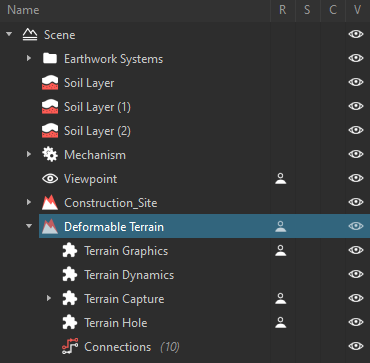
At simulation time, when a Deformable Terrain instance is added, the Vortex Integration will look for a deformable terrain prefab with a specific name. The prefab name must contain the Deformable Terrain hierarchy from the Vortex Editor explorer without the parent element that is contained in a Vortex file. The hierarchy levels are separated with period characters. Folders are omitted from the hierarchy. The name and hierarchy are case sensitive.
For example, for the following hierarchy, the prefab name would be Deformable Terrain.
Creating a Deformable Terrain Prefab
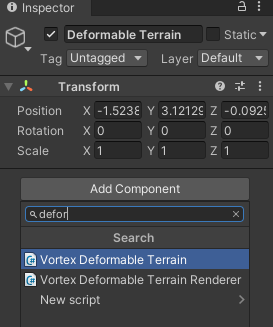
The deformable terrain prefab must have a Vortex Deformable Terrain component and a Vortex Deformable Terrain Renderer component.
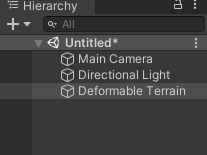
- Create an empty GameObject

- Rename it with the proper name (see the deformable terrain Prefabs section introduction)
- Select the created GameObject and add the VortexDeformableTerrain and VortexDeformableTerrainRenderer components in the inspector
- Create a new material based on the DefaultDeformableTerrainShader shader and assign it to the VortexDeformableTerrainRenderer material field
- Drag and drop the GameObject somewhere in the Assets folder in the project pane to create the prefab
You can create folders in in the assets folder to store the prefabs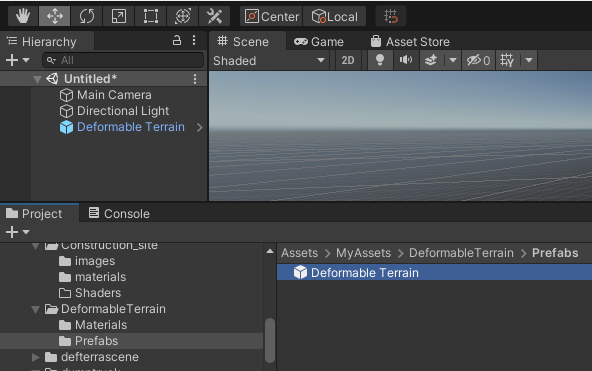
In the following section, we present in great detail the required components and materials that compose a deformable terrain prefab.
The VortexDeformableTerrain Component
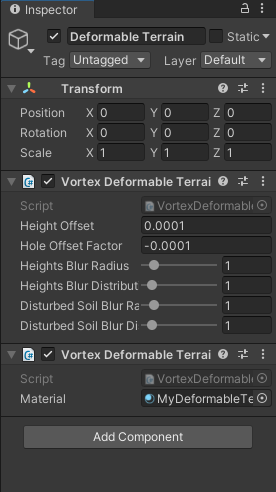
The VortexDeformableTerrain component is in charge of managing the deformable terrain data and to updating the renderer.
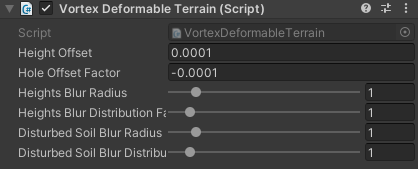
These public fields can be configured through the inspector:
Field | Description |
|---|---|
| Height Offset | An height offset that can be applied to the deformable terrain. |
| Hole Offset Factor | An offset factor to shrink down the hole created in the terrain where the Deformable Terrain is located. |
| Heights Blur Radius | Sets the smoothing factor on the deformable terrain geometry |
| Heights Blur Distribution Factor | Distribution factor that affects the heights blurring (the factor is the standard deviation on a normal distribution). |
| Disturbed Soil Blur Radius | Sets the smoothing factor for the transition between undisturbed and disturbed soil. |
| Disturbed Soil Blur Distribution Factor | Distribution factor that affects the undisturbed and disturbed soil transition blurring (the factor is the standard deviation on a normal distribution). |
The VortexDeformableTerrainRenderer Component
This component is used to render the deformable terrain as a dynamic mesh. The mesh is generated once and updated based on the incoming deformable terrain data.
These public fields can be configured through the inspector:
Field | Description |
|---|---|
| Material | The Unity material assigned to the generated deformable terrain mesh. The material must be based on the DefaultDeformableTerrainShader. |
The Deformable Terrain Material
The material must be based on the DefaultDeformableTerrainShader. To get a seamless transition between the overlapped terrain and the Deformable Terrain un-disturbed soil, the material must use the same parameters as the terrain meshes it intersects. The disturbed soil look can be controlled independently. The material will support intersections with up to two different terrain meshes.
These public fields can be configured through the inspector:
Field | Description |
|---|---|
| BaseMap<n> | The color texture used on the un-disturbed soil on the terrain mesh <n>. It must use the same texture from the intersected terrain material. |
| NormalMap<n> | The normal texture for the un-disturbed soil on the terrain mesh <n>. It must use the same texture from the intersected terrain material. |
| Metallic<n> | Determines how “metal-like” the surface is (between 0 and 1). It must match the value from the intersected terrain material on the terrain mesh <n>. |
| Smoothness<n> | Determines how smooth the surface is (between 0 and 1). It must match the value from the intersected terrain material on the terrain mesh <n>. |
| Disturbed Soil Albedo | The color texture for the disturbed soil |
| Disturbed Soil Normal Map | The normal texture for the disturbed soil |
| Disturbed Soil Normal Strength | The strength of the normal from the normal texture |
| Disturbed Soil Texture Tiling | The disturb soil texture texture tiling |
The Enable GPU Instancing, Emission and Motion Vector For Vertex Animation parameters are inherited by Unity's shader graph and should not be enabled.
Creating a custom deformable terrain shader
A custom shader must be assigned to the Deformable Terrain prefab material if a custom terrain shader is assigned to the intersected terrain prefab. The steps to create a custom deformable terrain shader are:
- Duplicate the custom terrain shader graph
In addition to the described fields in the Deformable Terrain Material section, add these parameters to the shader
Reference Name
Type
HeightFieldTexture Texture2D HeightFieldDimensions Vector2 DisturbedSoilTexture Texture2D RemapTexUV0, RemapTexUV1, RemapTexUV2, RemapTexUV3 and RemapTexVertexColor are textures parameters that must also be added if the shader uses vertices UVs or colors.
- Insert a HeightFieldVertexSubGraph and a DeformableTerrainFragmentSubGraph in the shader and link the nodes with the properties nodes and the Lit Master node as shown in this image.
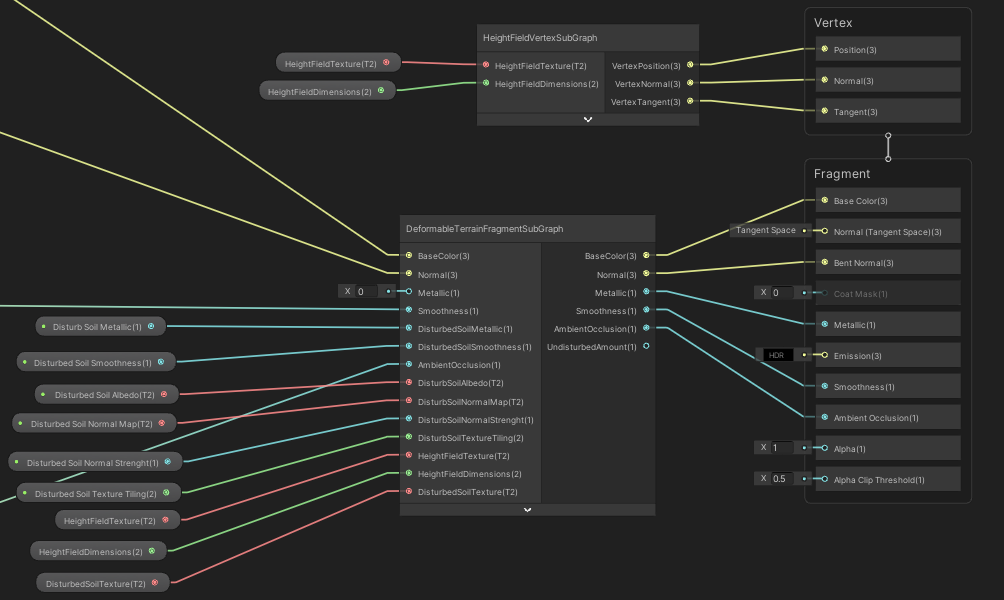
- Modify all samplers that use the mesh UVs to use the UVs stored in the RemapTexUV0, RemapTexUV1, RemapTexUV2 and RemapTexUV3 textures
Before: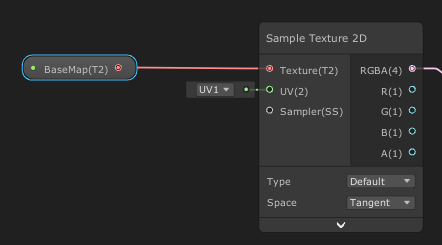
After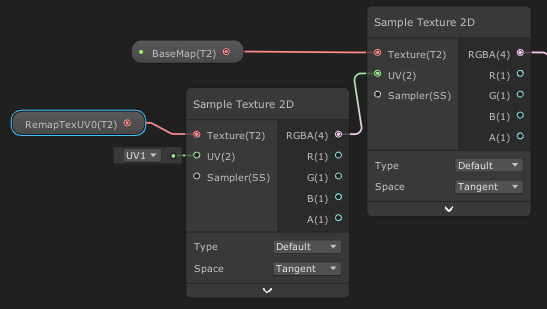
- Replace all Vertex Color nodes to use colors stored in the RemapTexVertexColor texture
Before: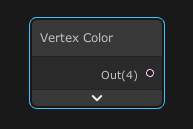
After: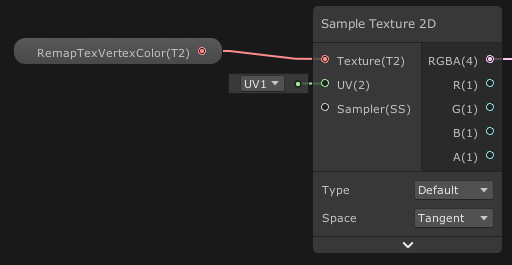
- For undisturbed soil, if the deformable terrain overlaps multiple terrain meshes, some extra code is required to properly select the right texture for albedo and normal. The RemapTex* alpha channel will contain the index of the captured mesh.
In this example we chose between two different BaseMaps base on the index encode in the alpha channel.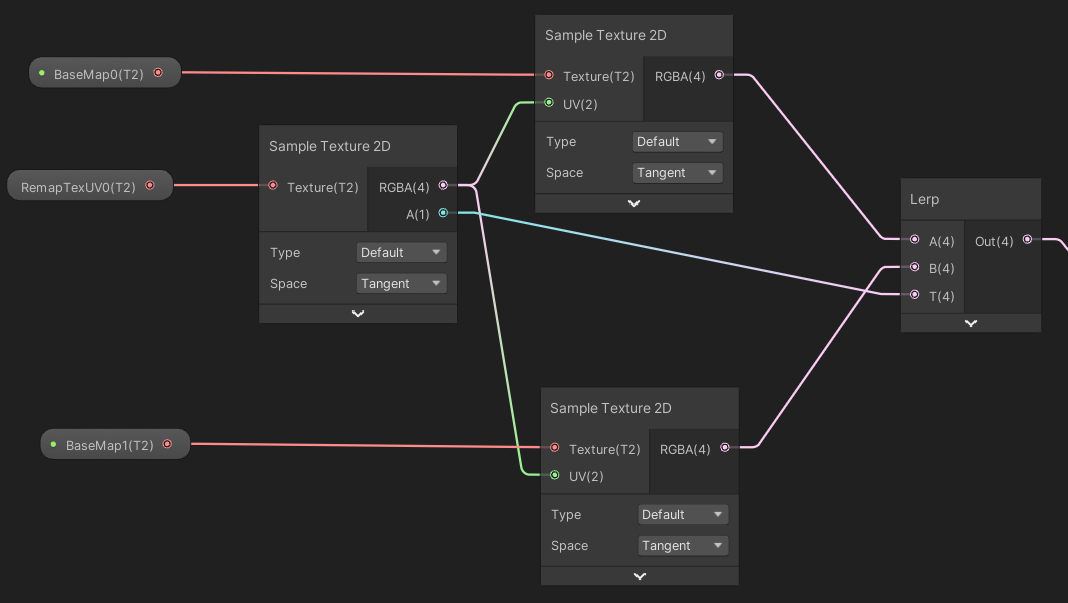
- When creating the material based on the shader, make sure that the parameters common with the terrain material are all set to the same values.
Terrain Prefabs
Please refer to the Earthwork Zone documentation to see how the terrain prefabs are configured.
Creating an Asset Bundle
Once the deformable terrain prefabs and the terrain prefabs are created, they can be packaged in asset bundles so that they can be loaded by VortexUnityApp, or your own similar Unity application with Vortex Integration.
The process for generating an asset bundle is described in this section. In short, you can use the Export Asset Bundle... command from the context menu when selecting the folder containing the prefab's assets.
Then, select the file's destination and name to create the file.
In order to get VortexUnityApp to load the asset bundles properly, the asset bundles files must be placed in the same folders where are stored the Vortex file that contains the Deformable Terrain and the Vortex graphic gallery.